
You land on a website and wonder what it's built with. Maybe it's a competitor, maybe it's a potential client, maybe you just like the design. There are a few ways to find out, from a quick look at the page source to checking thousands of sites at once.
Method 1: Look at the page source
Every platform leaves fingerprints in the HTML it serves. Open the page, right-click and choose View Page Source, then search (Ctrl+F or Cmd+F) for these clues:
| Platform | What to search for |
|---|---|
| WordPress | /wp-content/ or /wp-includes/, or a generator tag mentioning WordPress |
| Webflow | data-wf-site or files from website-files.com |
| Shopify | cdn.shopify.com |
| Wix | static.wixstatic.com |
| Squarespace | static1.squarespace.com |
| Framer | framerusercontent.com |
| Next.js | /_next/static/ or __NEXT_DATA__ |
| Elementor | /wp-content/plugins/elementor/ or classes starting with elementor- |
Many sites also include a <meta name="generator"> tag that names the platform outright. Search the source for "generator" and you'll often get your answer in one step.
This works well for one site at a time. It's slow for more than a handful, and you need to know what you're looking for.
Method 2: Use a browser extension
Technology detection extensions, Wappalyzer being the best known, show the stack of the page you're on with one click. They're handy for quick checks while you browse. They only tell you about the site in front of you, though, so they don't help you find new sites.
Method 3: Look it up on Dozif
Type any domain into the search bar at the top of Dozif and you'll get its profile: the main platform, add-ons like page builders or e-commerce plugins, when we first saw each technology, plus its niche, country and any problems we found. If the site isn't in our database yet, signed-in users can have it analysed on the spot.
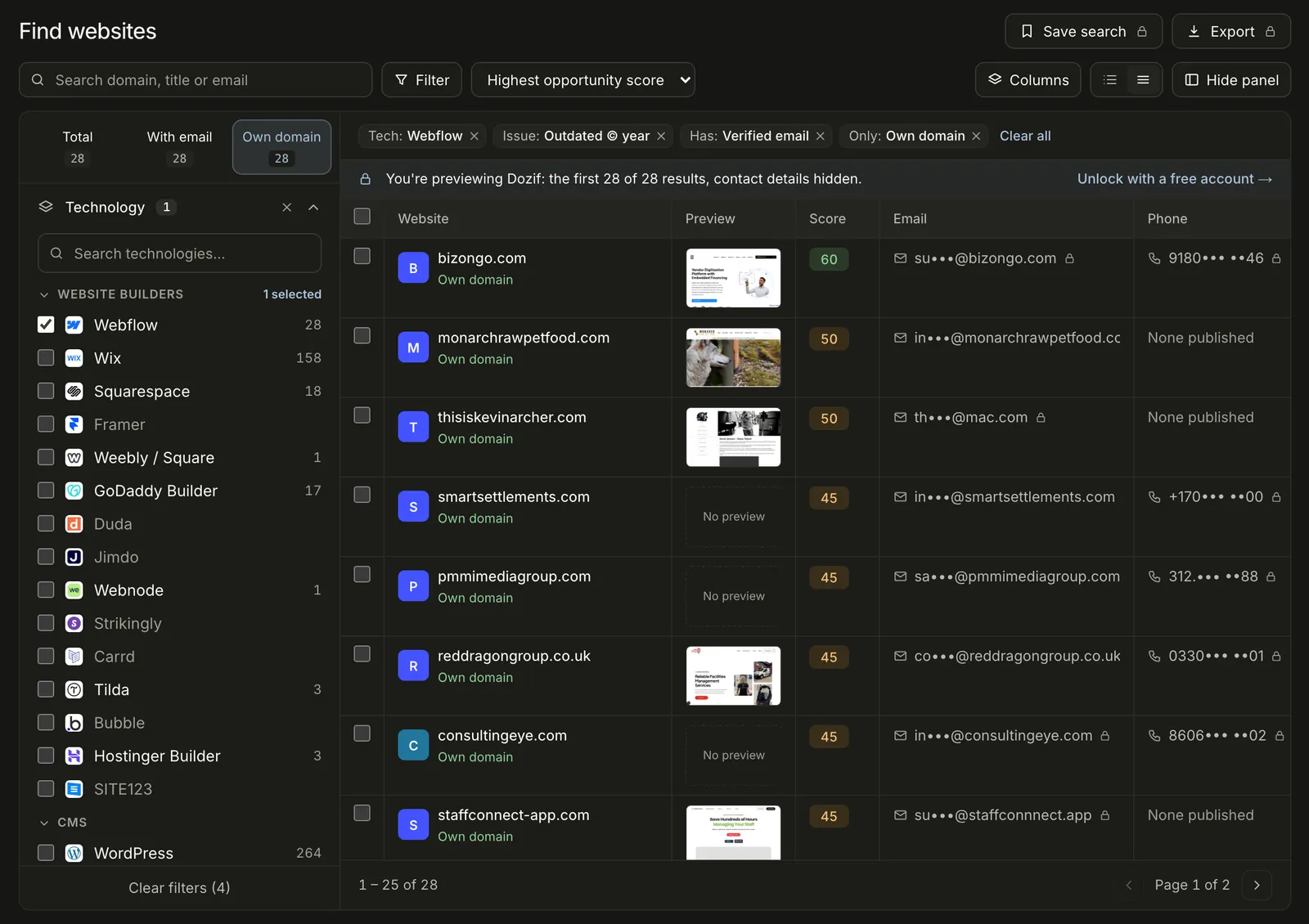
Every profile is public, so you can check a site without an account. You can also go the other way and search by technology. Here's what that looks like for Webflow sites:
Method 4: Search by technology instead
Often the question isn't "what is this site built with?" but "which sites are built with this?" That's the more useful question if you're looking for clients. Rather than checking sites one by one, start from the technology:
- Every technology we track, with live counts by country and niche
- The search, filtered to one platform: for example Webflow sites, Shopify stores or WordPress sites
Right now we track 17,490 business websites across dozens of technologies.
Which method should you use?
- Curious about one site? View the source, or look it up on Dozif.
- Browsing lots of sites casually? A browser extension is quickest.
- Looking for clients on a platform? Search by technology and filter by niche, country and problems, so you only see sites that need help.